
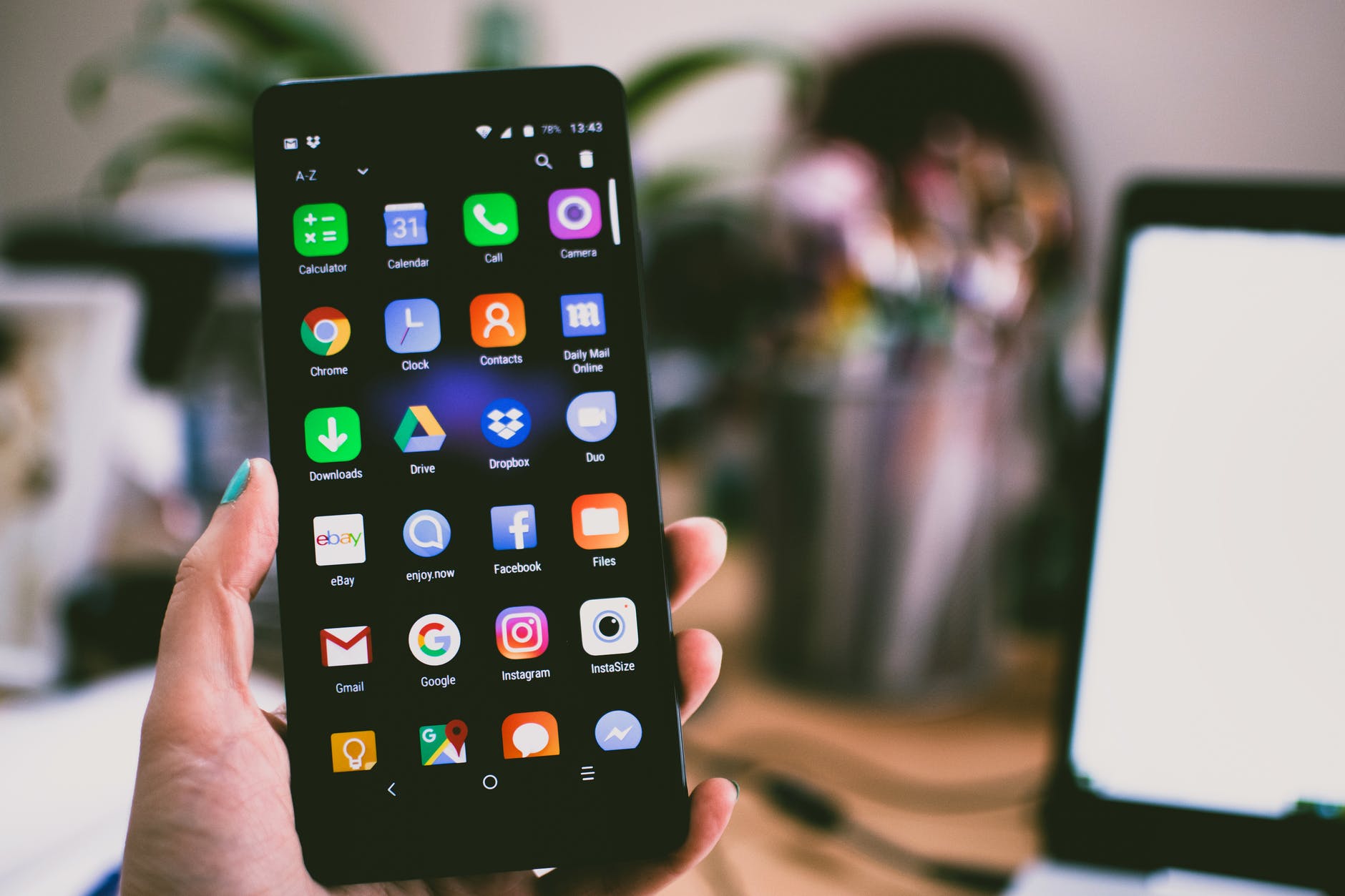
With a wide variety of features and apps available, it’s essential to know strategies for improving your cell phone’s battery life.
Among the many apps used every day, some apps have a significant impact on power consumption, with one in particular standing out. Do you know what it is?
Which app consumes the most battery power on smartphones?
Surprisingly, the app that affects the most battery consumption on mobile phones is not the Chrome browser. In fact, the big villain is Google Play Services.
It’s an app found on most Android devices, that performs essential functions for a full OS experience.
Google Play Services allows apps to integrate with Google services, such as user authentication, data sync, push notifications, location services, security updates, and more.
In addition, it offers a complete application store, the Google Play Store, where users can download and update their applications.
Google Play Services is regularly updated by Google to bring performance and security improvements and new features to Android devices.
More on how this app works
Although most of the users are not aware of its background activities, this app plays a major role in offering a complete app store and browsing services.
Unlike other programs that are actively used by users, Google Play Services consume more power and storage.
In this way, its effect extends across the entire device, allowing access to modern Android features on older devices without the need for full updates.
In this sense, these services allow installation of applications, notification of applications already installed and backups in the cloud.
Therefore, it is important to note that Google Play Services cannot be disabled, which may raise concerns about its resource consumption.
This app is often called as one of the best battery draining apps, surpassing even the popular Google Chrome.
How to reduce overconsumption?
To reduce excessive consumption, restart your device and check for pending updates. If it persists, pause Google Play Services or clear the app data.
Finally, it’s worth noting that disabling or completely removing Play Services can affect the functioning of your Android device, so only do it in specific situations of anomalous behavior.

Edward Langley is a contributor at Mediarunsearch.co.uk, covering a wide range of topics including news, politics, business, technology, sport, entertainment and lifestyle. He focuses on delivering clear, balanced reporting and useful information that helps readers stay informed about current affairs and developing stories. His work highlights issues, trends and events that matter to everyday audiences, with an emphasis on accuracy, relevance and accessible journalism.