

Use the WhatsApp Web Using a QR code is a practical and quick way to access your WhatsApp messages directly from your computer or tablet. For those looking for greater convenience in managing their messages, understanding this process can be very helpful. See here how to do it using either an Android device or an iPhone.
Understand the process of accessing WhatsApp Web
The first step to use WhatsApp Web It is access to the specified website for this function. This can be done through any browser on a computer or secondary device. One important detail is that your primary mobile device must be connected to the Internet throughout the process, as well as the secondary device that will be used to access the website.
How to scan WhatsApp Web QR code?
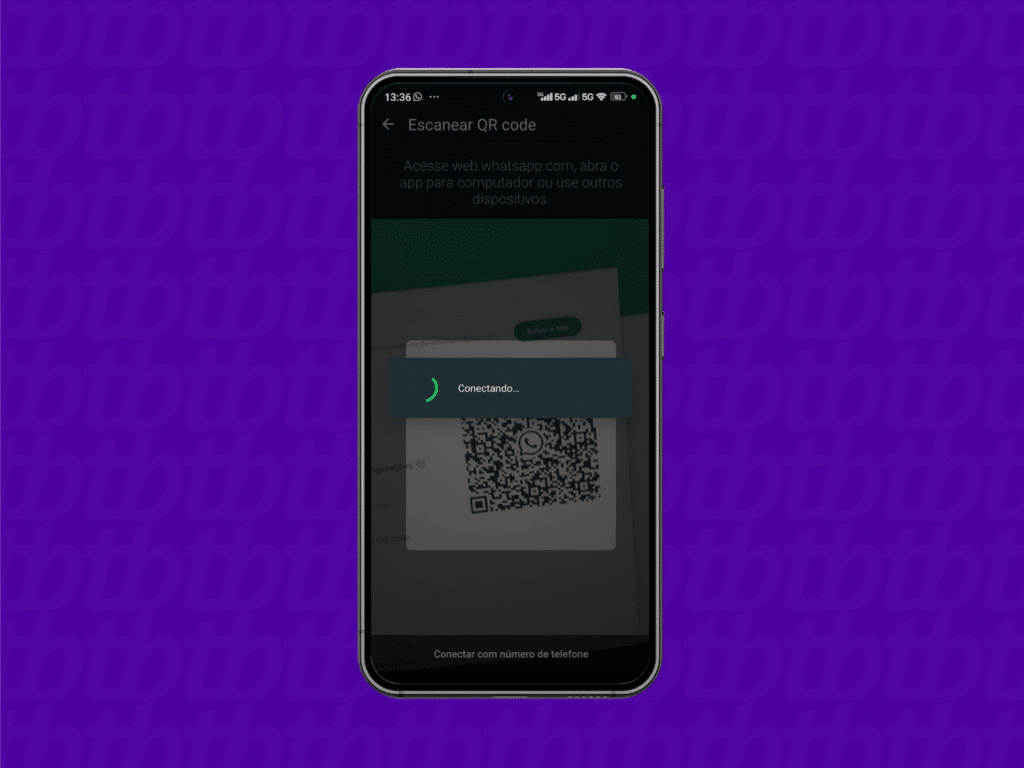
With the WhatsApp Web website open on your computer or secondary device, the next step is to open WhatsApp on your smartphone. On Android, you need to tap the three-dot menu and choose “Connected Devices,” then “Connect to Device.” On iPhones, this can be done from the Settings tab, then Connected Devices and Connect Devices.
Below you can see detailed step-by-step instructions:
- WhatsApp Web: Access web.whatsapp.com directly through your browser (Chrome, Microsoft Edge, Firefox, or Safari). Or download the desktop app at whatsapp.com/download and click “Download for Windows or Mac” to get the app.
- open the WhatsApp on your phone and click on the menu icon (three dots or lines) in the upper right corner.
- Select the “WhatsApp Web” or “WhatsApp Desktop” option, depending on the version you are using.
- handle “Scan the QR code“He pointed the cell phone camera at the QR code displayed on the computer screen.
- Wait for the QR code to be scanned and the authentication process is complete.
- You are now logged into WhatsApp on your computer.
Common problems when scanning a QR code
Some issues may prevent successful scanning of the QR code. Among them are camera permission issues on your cell phone, an expired QR code, or even a failed internet connection. It should also be noted that access attempts via an incompatible Internet Explorer browser may result in failure.
- Not allowing camera use: Check the app permissions settings.
- Expired QR code: Refresh the WhatsApp web page to generate a new code.
- Screen brightness problems: Adjust the brightness to make the code easier to read.
Frequently asked questions about accessing WhatsApp Web
- Can I use WhatsApp Web without a QR code? Yes, it is possible to use an eight-character code, but it requires manual entry of this code being generated in the web version.
- Is WhatsApp Web safe? Although WhatsApp Web is considered secure, it is necessary to take precautions such as using biometrics and two-step verification to increase security.
- Is it possible to clone WhatsApp via QR Code? Not directly, but it is always necessary to be aware of possible fake pages pretending to be the official WhatsApp website.
Knowing these steps and taking precautions can make your digital life much easier, making your messages accessible no matter what device you use.

Edward Langley is a contributor at Mediarunsearch.co.uk, covering a wide range of topics including news, politics, business, technology, sport, entertainment and lifestyle. He focuses on delivering clear, balanced reporting and useful information that helps readers stay informed about current affairs and developing stories. His work highlights issues, trends and events that matter to everyday audiences, with an emphasis on accuracy, relevance and accessible journalism.