
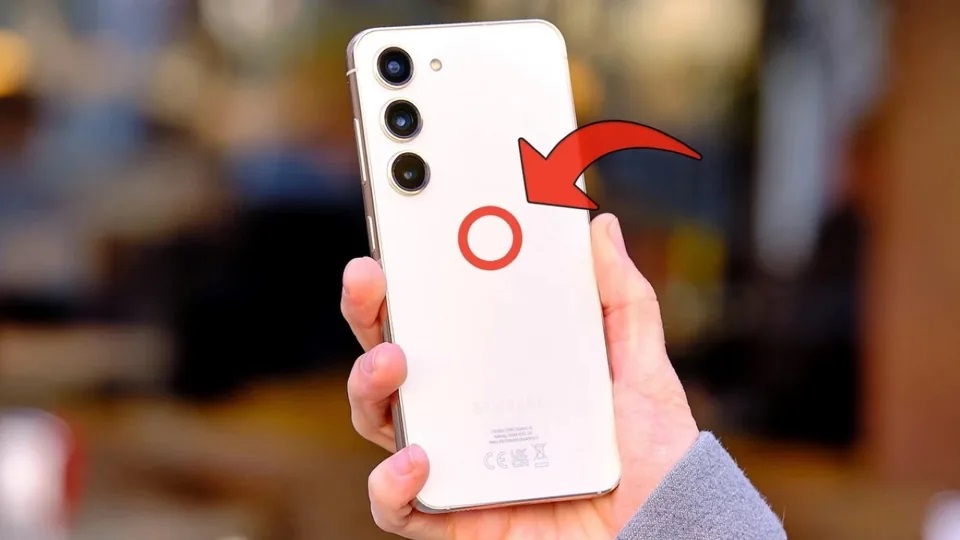
Hey Samsung Galaxy It has a secret feature that can make using your cell phone much easier: hidden button On the back. This “button” is not physical, but a touch-sensitive area that, when configured, can perform several functions.
Unlike other Android and iPhone devices, activating this function on Galaxy devices requires a little more work, but it's worth it. Learn how this feature works that can make your daily life easier!
How to activate the hidden button in Galaxy
First, go to the Galaxy Store and download the Good Lock app for free. After installing the app, go to the “Life up” tab and search for the RegiStar module. So, install the module and open it to see the available options.
Next, activate the “Back-click action” function and configure the desired actions in two or three clicks. There are several possibilities: from taking a screenshot to opening the voice assistant or accessing recent applications. However, if you are using a thicker case on your cell phone, it is important to adjust the touch sensitivity to ensure command recognition.
(Photo: Alejandro Alcolea/Zataka)
Customization
With it, you can quickly take screenshots and even share these images instantly. Additionally, you can configure it to open a specific app, making it easy to access your favorite tools.
Another use is to activate the voice assistant or the notification screen with just two clicks. This brings more flexibility when using your cell phone, especially at times when speed is essential. In other words, the “triple click” function can be programmed to open multitasking or even the back button, saving time and effort.
By setting the highest sensitivity level, it is ensured that the cell phone recognizes the touch even with protection. This avoids frustration and improves the ease of use of the resource.
Features of Galaxy devices
Many Samsung smartphone models support eSIM, including the Galaxy S series, Note series, and some Galaxy A series models. This compatibility is expanding as Samsung integrates eSIM into more devices. Some of them are: Galaxy S22, S23, S24 Lines Fold 3, Fold 4, Fold 5 Lines Z Flip 3, Z Flip 4, and Z Flip 5.
Moreover, the AR Zone on a Samsung phone is a set of features that allow users to interact with the virtual world in creative ways. One of the most fun features is the ability to create custom emojis, turning selfies into animated avatars.
To access AR Zone, simply go to the Samsung Camera app on compatible phones, select AR mode (under “More”) and follow the instructions to create your digital avatar. The process is intuitive, making it easy to create custom emojis that reflect your expressions and style.

Edward Langley is a contributor at Mediarunsearch.co.uk, covering a wide range of topics including news, politics, business, technology, sport, entertainment and lifestyle. He focuses on delivering clear, balanced reporting and useful information that helps readers stay informed about current affairs and developing stories. His work highlights issues, trends and events that matter to everyday audiences, with an emphasis on accuracy, relevance and accessible journalism.