
Close Menu
    Facebook X (Twitter) Instagram
    Trending
    • New Zealand Thrash Australia 43-21 in Bledisloe Cup to Extend Winning Streak
    • Warhammer Age of Sigmar Reveals Three Khazalite Holds Armies of Renown Combining Duardin Forces
    • UK Households Could Face Higher Energy Bills Under Ofgem Plans to Protect Suppliers
    • Shark Nebula Image Wins Royal Observatory Greenwich Astronomy Photography Prize
    • Pre-Orders Open for Camp Snap 110 D Screen-Free Digital Camera
    • Researchers Used Claude to Exploit OpenAI Employee ChatGPT Accounts
    • Sigma Unveils 85mm f/1.2 DG Art as Its Fastest Portrait Lens Yet
    • South Park Creators Rename Show ‘South America’ in Apparent Trump Dig
    Mediarun Search
    • Home
    • Top News
    • World
    • Economy
    • Science
    • Technology
    • Sport
    • Entertainment
    • Contact Us
    Mediarun Search
    Home»Tech»How to permanently remove voicemail notification on Android and iPhone
    Tech

    How to permanently remove voicemail notification on Android and iPhone

    Edward LangleyBy Edward LangleyMay 29, 2022No Comments2 Mins Read
    Facebook Twitter Pinterest LinkedIn Tumblr Email
    How to permanently remove voicemail notification on Android and iPhone
    Share
    Facebook Twitter LinkedIn Pinterest Email

    Despite fading into oblivion, voicemail is still a feature that keeps working by default cell phone Android and also on iPhones. All it takes is a call to voicemail to trigger an alert located at the top of notifications.

    The good news is that deactivating this type of alert is simple and fast, just a few clicks and that’s it. Since the notification is usually triggered by mistake, when a contact forgets to turn off the phone after a voicemail warning, for example, check out our guide below on how to get rid of the problem for good.

    publicity celebrity

    See also!

    Remove Voicemail Notification on iPhone

    If you are an iPhone user, just follow these steps:

    1. Open Settings first and then tap on the Phone option

    2. Then tap on “Notifications”.

    Remove Voicemail Notification on iPhone
    On the iPhone, it is possible in a few clicks to turn off the voicemail alert once and for all. Photo: reproduction

    3. On the next screen, uncheck the “Warnings” option.

    Disable Voicemail Alert on Android

    On Android, the steps may differ slightly depending on the system version and device manufacturer. Action tested on Android 11.

    1. Open the device settings by clicking on the gear icon.

    2. Then go to “Apps & notifications” > “Application info”.

    3. Find the “Phone” app in the list.

    See also  How to read messages on WhatsApp without accessing the "internet" in the application

    4. Now, access the “Notifications” option
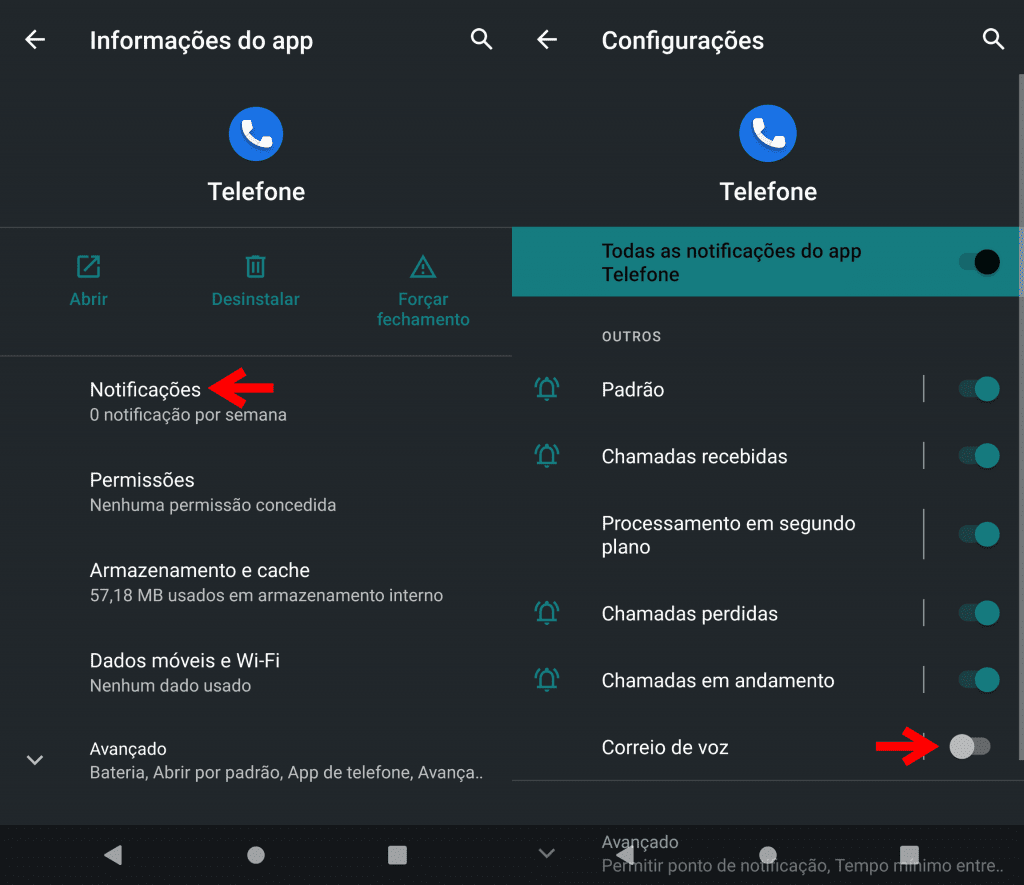
    Disable Voicemail Alert on Android
    On Android, using the information in the Phone app, it is possible to disable voicemail notifications. Photo: reproduction

    5. The last step is to disable the “Voicemail” button.

    ready! Now you know how to remove the voicemail notification that keeps popping up from time to time in the notification center.

    Have you seen the new videos on Youtube digital outlook? Subscribe in the channel!

    Edward Langley

    Edward Langley is a contributor at Mediarunsearch.co.uk, covering a wide range of topics including news, politics, business, technology, sport, entertainment and lifestyle. He focuses on delivering clear, balanced reporting and useful information that helps readers stay informed about current affairs and developing stories. His work highlights issues, trends and events that matter to everyday audiences, with an emphasis on accuracy, relevance and accessible journalism.

    Share. Facebook Twitter Pinterest LinkedIn Tumblr Email

    Related Posts

    Pre-Orders Open for Camp Snap 110 D Screen-Free Digital Camera

    September 19, 2026

    Sigma Unveils 85mm f/1.2 DG Art as Its Fastest Portrait Lens Yet

    September 9, 2026

    ChatGPT Hit by Major Outage as OpenAI Reports Errors and Delays

    September 1, 2026
    Leave A Reply Cancel Reply

    Navigate
    • Home
    • Top News
    • World
    • Economy
    • Science
    • Technology
    • Sport
    • Entertainment
    • Contact Us
    Pages
    • About Us
    • Contact Us
    • DMCA
    • Editorial Policy
    • Privacy Policy
    © 2026 Media Run Search. All Rights Reserved. Designed by Media Run Search.

    Type above and press Enter to search. Press Esc to cancel.