
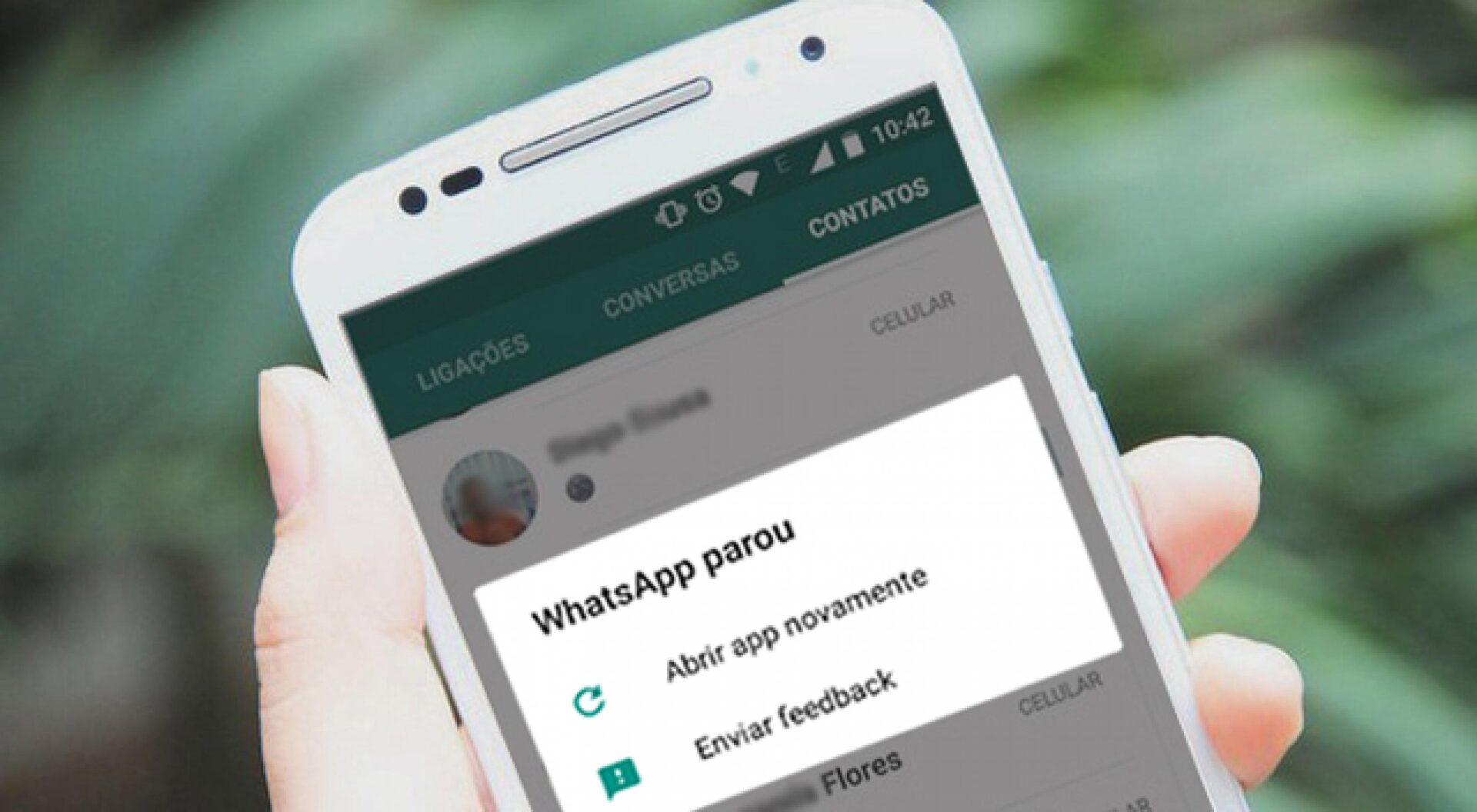
If you have an Android phone, it is likely that you have already received the “App has stopped” message when using an app available on your smartphone.
Android mobile phones, like any other platform, don’t last forever. Early in their lives, these devices are often fast and agile. In addition, it is possible to open dozens of applications at the same time, without introducing the famous bugs.
However, over time, your cell phone may begin to show failures and problems, mainly related to the applications installed on the device.
This can happen for a number of reasons, but don’t worry, it has a solution, and we’ll show you how to fix this problem below.
What is the cause of this error?
First, it is important to understand that there is more than one reason why Android apps might suddenly stop working. Some of them are: factory error in the cell phone, years of use of the device, virus-infected apps, among others.
Following the same logic, there are also some easier, faster, and more traditional solutions to try to fix these issues, such as restarting the cell phone, turning the device off and on, activating airplane mode, or uninstalling and reinstalling that app that is presenting the error.
If you’ve already tried to fix your problem using these traditional options, and still haven’t succeeded, see our step-by-step to end app errors.
How to solve the “application has stopped” error on your Android device?
- Access your Android phone settings. This function is usually identified by a gear or sprocket icon.
- Click on the “Applications” option.
- In it, find the application that is showing the error and tap on it. advice: If you’re having trouble locating the app you want, you can search for it using the “Magnifying Glass” tool, usually located in the upper-right corner of the screen.
- “Inside” the desired application, click on the “Storage” option.
- Then tap on the “Clear Cache” option.
That’s it, now your app will be free of any errors!

Edward Langley is a contributor at Mediarunsearch.co.uk, covering a wide range of topics including news, politics, business, technology, sport, entertainment and lifestyle. He focuses on delivering clear, balanced reporting and useful information that helps readers stay informed about current affairs and developing stories. His work highlights issues, trends and events that matter to everyday audiences, with an emphasis on accuracy, relevance and accessible journalism.