
Close Menu
    Facebook X (Twitter) Instagram
    Trending
    • ChatGPT Hit by Major Outage as OpenAI Reports Errors and Delays
    • CeX Website Confirms Plans for Retro-Only Games Store in Birmingham
    • Artificial Intelligence Could Trigger Global Economic Downturn, Bank of England Governor Warns
    • Rising carbon dioxide is accelerating grass growth across African savannas, study finds
    • Fortnite cheat codes: Full list of Lobby Hack codes and island cheats explained
    • RMT announces fresh East Midlands Railway strikes over Aurora train safety concerns
    • Boardmasters Festival 2026: Emerging South West Artists Ready to Take Centre Stage
    • Xbox Free Play Days: Five Games Available to Try for Free This Weekend
    Mediarun Search
    • Home
    • Top News
    • World
    • Economy
    • Science
    • Technology
    • Sport
    • Entertainment
    • Contact Us
    Mediarun Search
    Home»Tech»The Apple logo secret function can be very useful for iPhone owners
    Tech

    The Apple logo secret function can be very useful for iPhone owners

    Edward LangleyBy Edward LangleyMarch 11, 2023No Comments2 Mins Read
    Facebook Twitter Pinterest LinkedIn Tumblr Email
    The Apple logo secret function can be very useful for iPhone owners
    Share
    Facebook Twitter LinkedIn Pinterest Email

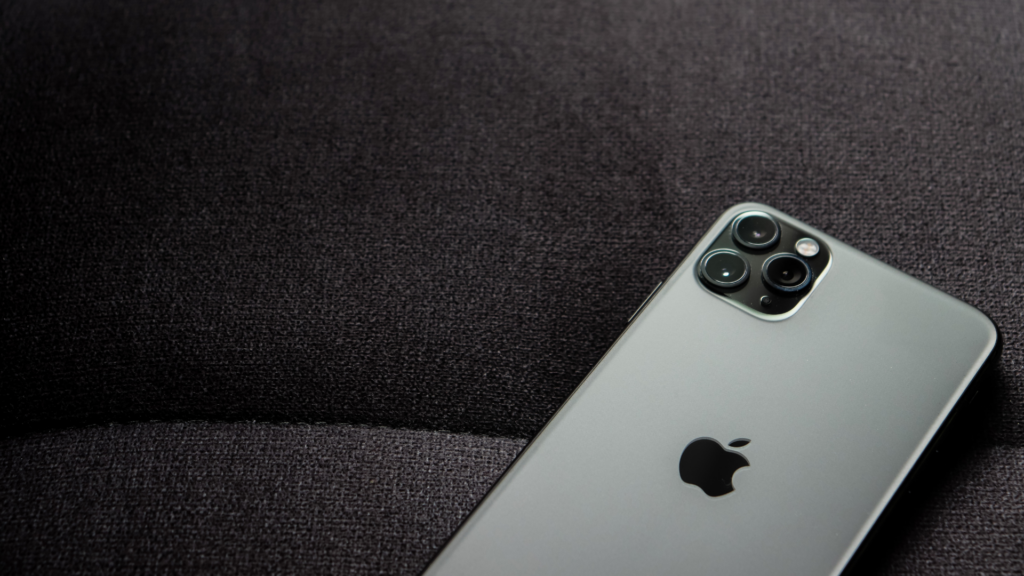
    Not many know, but the Apple logo attached to the back of the device is not just to highlight the brand. On the contrary, the logo also contains a secret function that can be very useful for those who have an iPhone. Find out how a job works apple logo.

    The Apple logo and its secret function

    In addition to strengthening the company’s brand, the Apple logo has another function unknown to many users: that of being a button. Through it, it is possible to access, in a few seconds, many functions that previously took a few minutes to be activated.

    However, to use this function, it must be activated and customized in Settings mode. So, if you are interested in using this function on your iPhone, just follow the steps below.

    Step by step to configure this function:

    • The first step: The user has to go to the Settings tab and then click on the Accessibility option. Then scroll to the bottom of the page and select the “Ringtone” tab.
    • The second step: Navigate to the option that says Reboot and then click on the Double Tap tab and choose from the options Enable Flashlight, Volume Down, Screenshot, and others.
    • The third step: Simply select the shortcut you want to use when you click on the Apple logo.

    After accessing the Back Tap function, it is very easy to use, you just need to tap two or three times on the back of your device iPhone About where the Apple logo is.

    Other tips:

    • Turn on AssistiveTouch to adjust volume, lock the screen, use multi-finger gestures, restart your device, or tap instead of pressing buttons;
    • Ask Siri to quickly perform everyday tasks in the apps you use most with Siri Shortcuts.
    • Use the magnifier to turn your iPhone or iPad into a magnifying glass to magnify nearby objects.

    See also  WhatsApp: How to use new message reactions
    Edward Langley

    Edward Langley is a contributor at Mediarunsearch.co.uk, covering a wide range of topics including news, politics, business, technology, sport, entertainment and lifestyle. He focuses on delivering clear, balanced reporting and useful information that helps readers stay informed about current affairs and developing stories. His work highlights issues, trends and events that matter to everyday audiences, with an emphasis on accuracy, relevance and accessible journalism.

    Share. Facebook Twitter Pinterest LinkedIn Tumblr Email

    Related Posts

    ChatGPT Hit by Major Outage as OpenAI Reports Errors and Delays

    September 1, 2026

    Fortnite cheat codes: Full list of Lobby Hack codes and island cheats explained

    August 22, 2026

    Xbox Free Play Days: Five Games Available to Try for Free This Weekend

    August 8, 2026
    Leave A Reply Cancel Reply

    Navigate
    • Home
    • Top News
    • World
    • Economy
    • Science
    • Technology
    • Sport
    • Entertainment
    • Contact Us
    Pages
    • About Us
    • Contact Us
    • DMCA
    • Editorial Policy
    • Privacy Policy
    © 2026 Media Run Search. All Rights Reserved. Designed by Media Run Search.

    Type above and press Enter to search. Press Esc to cancel.