
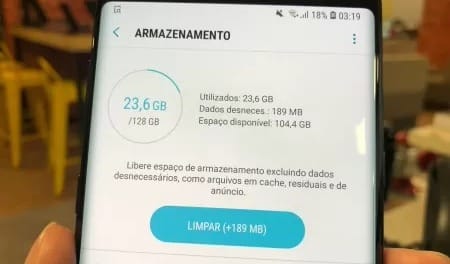
With a simple configuration, Google Play Store allows you to optimize your cell phone's memory management and free up up to 60% of the device's capacity. According to Google, the function allows the user to automatically archive applications that they rarely use, saving valuable space and ensuring faster performance of the cell phone, without having to uninstall anything. By enabling this option, the Android Store monitors the use of each application installed on the device, automatically archives less used applications and reduces the load on the cell phone memory. In this way, the user not only frees up space, but also achieves a more organized environment. Then, see how the feature works.
How does the tool work in practice?
The Google Play Store function can be activated manually through the App Store settings. The archiving function often appears when a user is trying to install a new app on a device that is running out of storage space. A pop-up window appears, displaying the option to activate the “automatic archiving” feature.
From there, the user can allow the tool to optimize space on the device. If you choose to activate the function, the tool automatically identifies applications that the user rarely uses.
Then, apps identified as rarely used are partially removed from the device to free up space. This means that the app is not completely removed, and the user's personal data related to it is preserved.
For greater user manageability, archived applications are visually indicated by cloud icons, letting the user know which ones have been optimized to free up space. Thus, even after archiving, the applications remain on the cell phone. This means that even though they are partially removed to free up space, they are still available for future use.
If the user decides to use the app again, simply tap to restore it. As long as the app is still available on the Google Play Store, you can resume using it where you left off.
how to use?
AutoArchiving can be activated even before your device runs low on memory, by following the step-by-step instructions below.
Step 1. Find Play Store among cell phone apps and click on the icon. On the Store home screen, select your profile picture in the upper right corner.
/i.s3.glbimg.com/v1/AUTH_08fbf48bc0524877943fe86e43087e7a/internal_photos/bs/2023/g/T/EvELVvRUAOIDMarQX9TA/atualizar-1-.jpg)
Step 2. Find and select the Settings icon. Then tap the down arrow next to the “General” icon.
/i.s3.glbimg.com/v1/AUTH_08fbf48bc0524877943fe86e43087e7a/internal_photos/bs/2023/y/M/U4S7ShTuKmmWDYgKn4Gg/atualizar-2-.jpg)
Step 3. Finally, just find the “Automatically archive apps” option and enable the function by dragging the activation icon next to it.
/i.s3.glbimg.com/v1/AUTH_08fbf48bc0524877943fe86e43087e7a/internal_photos/bs/2023/A/b/C2Bo7YQOOhtWQIW8Wxkw/atualizar-3-.jpg)
Credits: TechTodo.

Edward Langley is a contributor at Mediarunsearch.co.uk, covering a wide range of topics including news, politics, business, technology, sport, entertainment and lifestyle. He focuses on delivering clear, balanced reporting and useful information that helps readers stay informed about current affairs and developing stories. His work highlights issues, trends and events that matter to everyday audiences, with an emphasis on accuracy, relevance and accessible journalism.