

On October 11, Microsoft released Windows 11, which is considered the most secure yet.
Microsoft’s insistence that a computer must have the Trusted Platform Module (TPM) 2.0 component built into the motherboard to be eligible for the Windows 11 upgrade is evidence of how seriously the company takes security on its new system.
TPM 2.0 is a feature that verifies user identities and protects data from attacks. Among other protections, TPM makes it more difficult for someone who is not sitting in front of a Windows computer to access it.
But the Trusted Platform Module is just the beginning of the security and protection features that Microsoft has included in Windows 11. If you have a new operating system installed on your computer, here are the security settings you need to know.
Step one, to get to the Settings screen in Windows 11, click on the button. List Started or not search button on the taskbar and select Settings on the panel that appears.
1. Keep Windows 11 up to date
Good security starts with a software update, and if you select Windows Update in Settings, you can see the latest system improvements and bug fixes. click in Advanced Options NS active time To make sure Windows doesn’t restart and updates apply in the middle of the workday.
2. Check your login options
Select your name in the upper left corner of the Settings panel, then Login options To learn the different ways to log on to the computer. If face recognition (using your webcam) or fingerprint recognition (using a fingerprint sensor) is available, they are more secure than a password and should be supported by most modern computers.
3. Sign out when you’re away
On the same sign-in options screen, use the Sign-out button when you leave, so Windows will ask you to sign in again, and this method is also very important. You can also use the dynamic lock option to tell Windows to lock your device when you move away from it (as indicated by the location of the connected smartphone).
4. Enable the built-in security tools
If you click PRIVACY AND SECURITY and then, Windows Security In the settings, you will be able to see if the security software that comes with Windows is enabled. This is a must if you don’t have third-party alternatives installed. Any security issues that require your attention will be marked with a yellow exclamation point – tap it when it appears, and you’ll have more alert details.
5. Run a malware scan
From the same Windows Security screen, you can click Open security windows To access the Integrated Security Center for Windows 11. Most of the features here should run automatically in the background, including scans for dangerous malware, but you can run a scan manually by clicking protection Against viruses and threats and choose Quick check.
6. Check device security
Any hardware issues with your Windows 11 computer, including issues with TPM and the secure boot process, will be listed in safety page device after opening the Windows Security Tool.
If you need to take any immediate steps to further protect the operating system and stored data, they are listed.
7. Stay safe while online
If you choose Control Apps and Browser in Windows Security Software, you’ll see that there are two settings that can be enabled: Reputation-based protection (which means Windows 11 always looks for suspicious or underperforming apps) and Exploits Protection (which helps mitigate the impact of a variety of attacks remote hacker).
8. Check your security tools
The lesson security settings Windows to see the software that protects your Windows 11 PC and security providers – It might be the security software that came with Windows or third-party alternatives. You can also configure your security notification settings to make sure you are always informed.
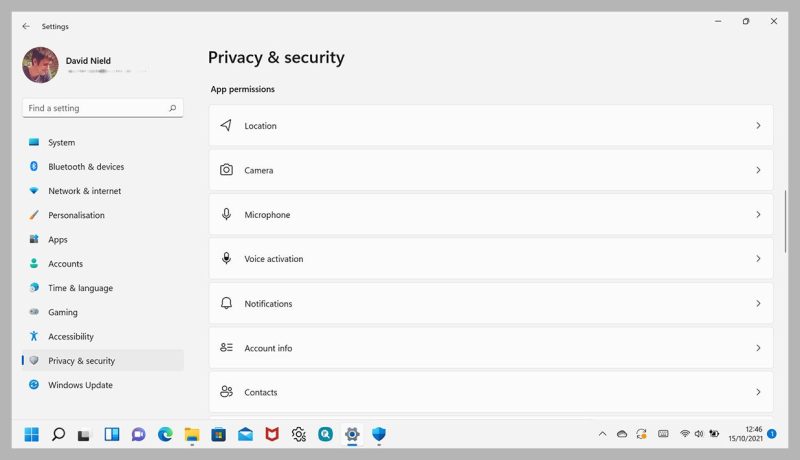
9. Manage app permissions
Just like in a smartphone, you can decide what permissions apps can use in Windows 11. Open the page PRIVACY AND SECURITY on the home screen afterwards Settings and scroll down to see permissions. Tap the permissions you want on the screen, such as location, camera, and microphone.

10. Make sure your device can be found if you lose it
correct me PRIVACY AND SECURITY, then tap Settings and choose Find my device So that your site is registered periodically. This will allow you to sign in to your Microsoft account on another device and see where your Windows 11 notebook is.
11. Encrypt the data on your device
Encrypting the data on your hard drive makes it difficult for someone else to read the information (if they can extract the drive from your computer, for example). Not every computer offers this option, but if you have it, you can enable it by selecting PRIVACY AND SECURITY Then encrypt the device on the screen Windows 11 settings.
